Feb 13, 2025
Home Assistant Dashboard Evolution: Streamlined & Stunning in 2025
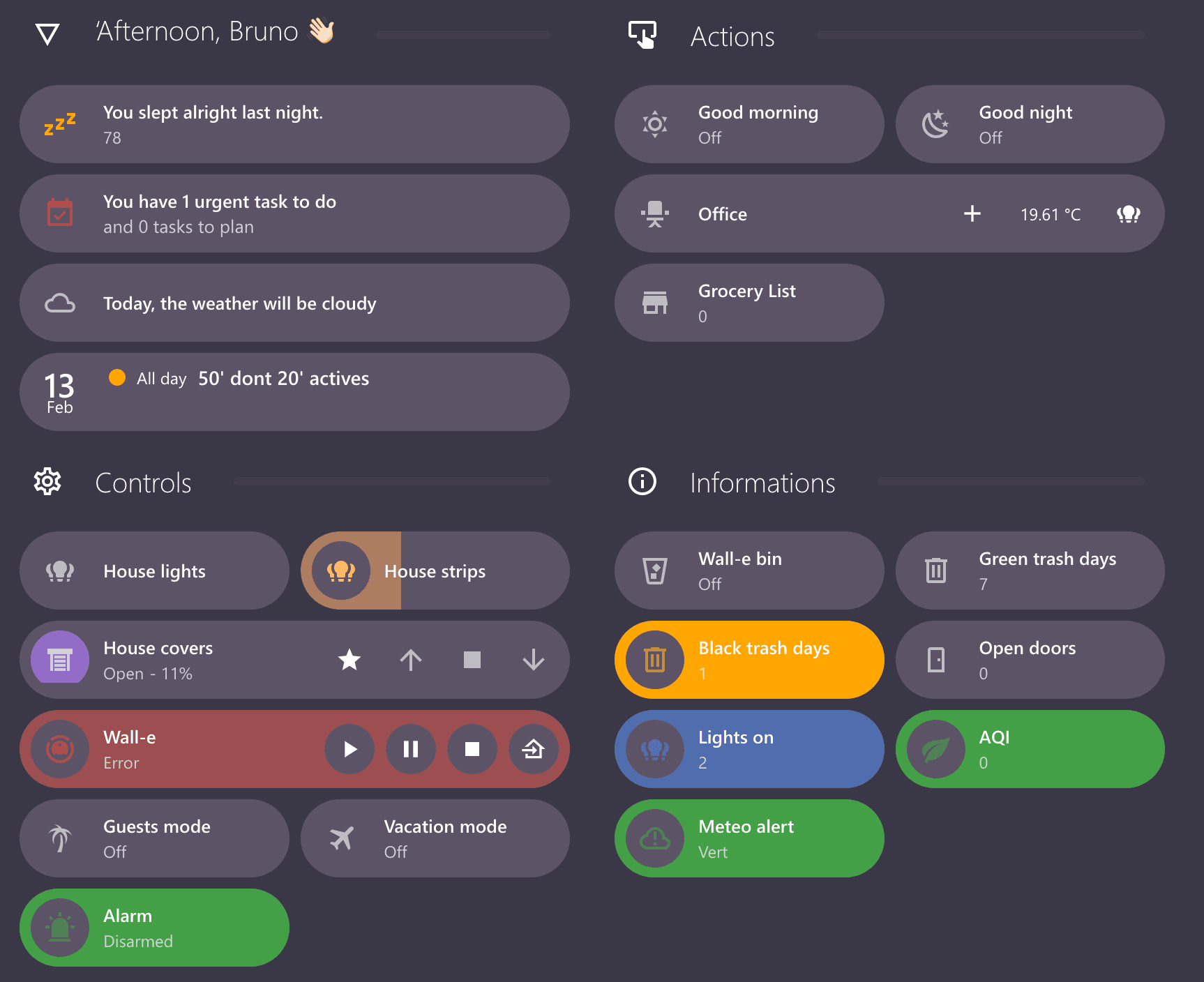
Visual Clarity & Performance Boost: A Year of Dashboard Evolution with Streamline Card and Bubble Card
Home AssistantHome AutomationBubble CardStreamline CardLovelace
Reduce Lovelace repetition, create dynamic dashboards, and manage your configuration efficiently with this modern templating card.

Hey everyone,
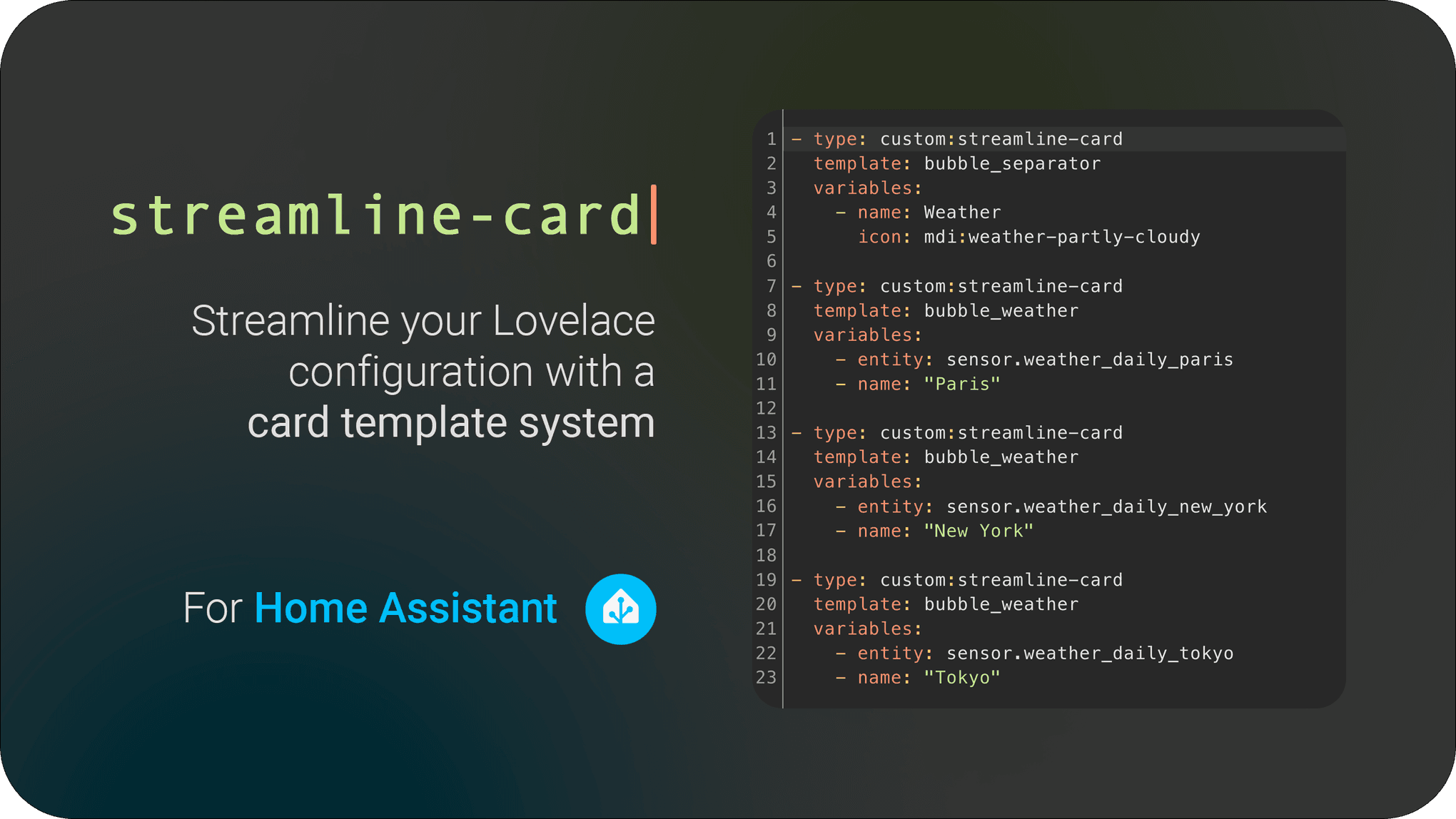
I want to talk about Streamline Card, a project I first released back in September 2024! It's a custom card for Home Assistant designed to make managing your Lovelace dashboards much easier, and it's been evolving ever since.
If you've spent any time setting up your Home Assistant dashboard (Lovelace), you've probably run into this: repetition. You create a nice card for one light, then you copy and paste the code, change the entity ID and name, and repeat... and repeat... for every single light, sensor, or switch.
This copy-paste routine works, but it has downsides:
Streamline Card tackles this head-on by letting you create reusable templates for your cards. Define it once, use it everywhere. This drastically reduces redundancy, makes your configuration easier to maintain, and lowers the chance of copy-paste errors.
Some of you might know decluttering-card, which offered a similar templating feature. I used it myself for a long time! However, the project seems unmaintained now, with questions and issues piling up.
While I enjoy contributing to community projects (like I did with Bubble-Card), the lack of activity on decluttering-card and my desire for some extra features led me to build Streamline Card from the ground up.
It keeps the core templating idea but adds several new capabilities:
So, it's built to solve the original problem but updated for modern Home Assistant and with more flexibility.
The concept behind Streamline Card is straightforward:
custom:button-card or any other card type) in a central place. You use special placeholders, like [[entity]] or [[name]], for the parts that will change for each specific card. You can also set default values for these variables.entity: light.living_room_main, name: 'Main Light').Plus, with Javascript support, you can embed small scripts directly into your templates. This allows you to dynamically change how a card looks or behaves based on entity states or other conditions, often simplifying things that might otherwise require complex card-mod configurations.
Getting Streamline Card into your Home Assistant is easy:
streamline-card.js file from the latest release on GitHub and place it in your config/www directory. Then, add it as a resource in Home Assistant (either via the UI or lovelace-resources.yaml).(See the GitHub repo for detailed steps.)
Once installed, you define your templates. You can do this in two ways:
streamline_template: section to your main Lovelace configuration file (or a file included from it).Here’s a basic example of defining a template in YAML:
streamline_template:
  # Template definitions go here
  my_light_template: # A unique name for your template
    default: # Optional: Define default values for variables
      - icon: mdi:lightbulb
    card: # The actual card configuration using variables
      type: custom:bubble-card # Use any card type you like, here Bubble Card
      card_type: button # Example: using a button inside Bubble Card
      entity: '[[entity]]' # Variables are enclosed in [[...]]
      name: '[[name]]'
      icon: '[[icon]]'
      # ... add any other Bubble Card options here
And here’s how you’d use that template in your dashboard UI configuration:
# Card using the template for the Kitchen Light
- type: custom:streamline-card
  template: my_light_template # Reference the template name
  variables: # Provide values for the variables
    entity: light.kitchen_main
    name: Kitchen Light
    icon: mdi:ceiling-light # This overrides the default icon

# Card using the template for the Bedroom Lamp
- type: custom:streamline-card
  template: my_light_template
  variables:
    entity: light.bedroom_lamp
    name: Bedroom Lamp # This will use the default icon (mdi:lightbulb)
Much cleaner and easier to manage than repeating the full bubble-card config!
Let's illustrate with a couple of use cases:
1. Simple Light Card (The Classic)
This is the bread-and-butter usage. Create a template (my_light_template like above) for how you want all your standard light switches/buttons to look. Maybe it's a custom:bubble-card (like the example), custom:button-card, custom:mushroom-light-card, or even a standard entities card row. Define variables for entity, name, maybe icon or area. Then, simply add custom:streamline-card entries to your dashboard, specifying the template and the entity/name for each light.
Here's the YAML again for this specific example:
First, define the template (e.g., in your configuration.yaml or a dedicated template file):
streamline_template:
  my_light_template:
    default:
      - icon: mdi:lightbulb
    card:
      type: custom:bubble-card
      card_type: button
      entity: '[[entity]]'
      name: '[[name]]'
      icon: '[[icon]]'
Then, use it in your Lovelace dashboard configuration:
# Kitchen Light
- type: custom:streamline-card
  template: my_light_template
  variables:
    entity: light.kitchen_main
    name: Kitchen Light
    icon: mdi:ceiling-light

# Bedroom Lamp
- type: custom:streamline-card
  template: my_light_template
  variables:
    entity: light.bedroom_lamp
    name: Bedroom Lamp
2. Dynamic Entities List (Using Javascript)
Want to get a bit fancier? You can use Javascript inside your template's card definition to dynamically generate content. This example shows how to create an entities card where the rows are generated based on a list passed as a variable.
First, define a template that expects a variable named list. This list should contain objects, each with an entity and name. The card section uses entities_javascript to process this list.
Here's how the card section of the template definition might look:
streamline_template:
  my_dynamic_list_template:
    # No defaults needed here, the list variable is mandatory
    card:
      type: entities
      # Use Javascript to generate the entities based on the 'list' variable
      entities_javascript: |
        // Ensure the 'list' variable exists and is an array
        if (!variables.list || !Array.isArray(variables.list)) {
          return [{ type: 'section', label: 'Error: Invalid list variable' }];
        }
        // Map each item in the list to an entity row configuration
        return variables.list.map(({entity, name}) => ({
          entity: entity,
          name: name,
          secondary_info: 'last-changed', // Example: Add secondary info
          state_color: true // Example: Enable state coloring
        }));
Then, use this template in your dashboard, providing the list variable containing your desired entities.
- type: custom:streamline-card
  template: my_dynamic_list_template
  variables:
    # Provide the list of entities to display
    list:
      - entity: sensor.temperature_outside
        name: Outdoor Temp
      - entity: sensor.humidity_outside
        name: Outdoor Humidity
      - entity: light.living_room_main
        name: Living Room Light
      # Add more entities as needed
This approach allows you to pass complex data structures to your templates and use Javascript to render them dynamically within standard Home Assistant cards, keeping your dashboard configuration clean.
Streamline Card is still evolving, so you might encounter the occasional bug or quirk. However, if you're looking to clean up your Lovelace configuration, reduce repetition, and make future updates easier, I encourage you to give it a try!
You can find all the code, documentation, and examples on the Streamline Card GitHub Repository.
Please feel free to:
Your feedback is invaluable in making Streamline Card better.
Thanks for reading, and happy streamlining!
Feb 13, 2025
Visual Clarity & Performance Boost: A Year of Dashboard Evolution with Streamline Card and Bubble Card

Feb 4, 2025
A simple automation for secure and reliable certificate monitoring.

Aug 6, 2024
Unlock the Full Potential of Automation with Custom Templates

Jul 13, 2024
Learn how I built a sleek & functional Home Assistant dashboard cards by customizing weather, alarms, & more to create an awesome smart home experience.